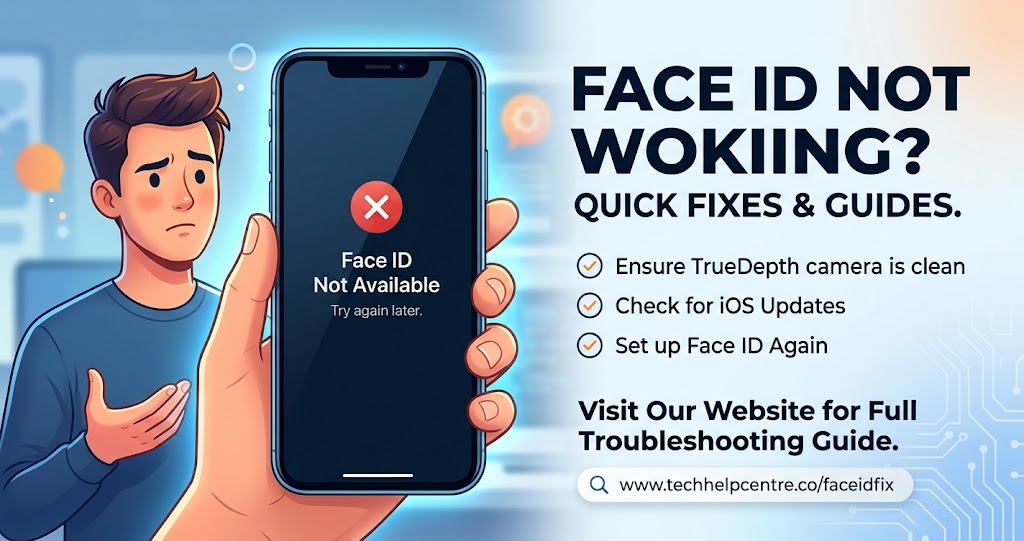
When Face ID not working becomes a problem, even simple tasks like unlocking your iPhone or approving an App Store purchase can become frustrating. The good news is that many Face ID problems come from settings, camera obstructions, positioning, software issues, or a Face ID setup that needs to be refreshed.
This guide explains how to troubleshoot Face ID on your iPhone, including what to check before resetting Face ID and when a hardware problem may require professional service.
Why Is Face ID Not Working?
Face ID relies on the TrueDepth camera system to recognize your face. Therefore, anything that interferes with the camera, your face, the device position, or Face ID settings can prevent authentication.
A dirty area around the front camera is one common possibility. A screen protector or case can also interfere if it overlaps the TrueDepth camera area. Apple recommends checking for anything that may cover the camera before trying more advanced troubleshooting.
Software can also play a role. If your iPhone has not been updated, an available iOS update may contain fixes or improvements that affect system features. Because of that, checking your software version is a sensible early step.
Check Your Face ID Settings
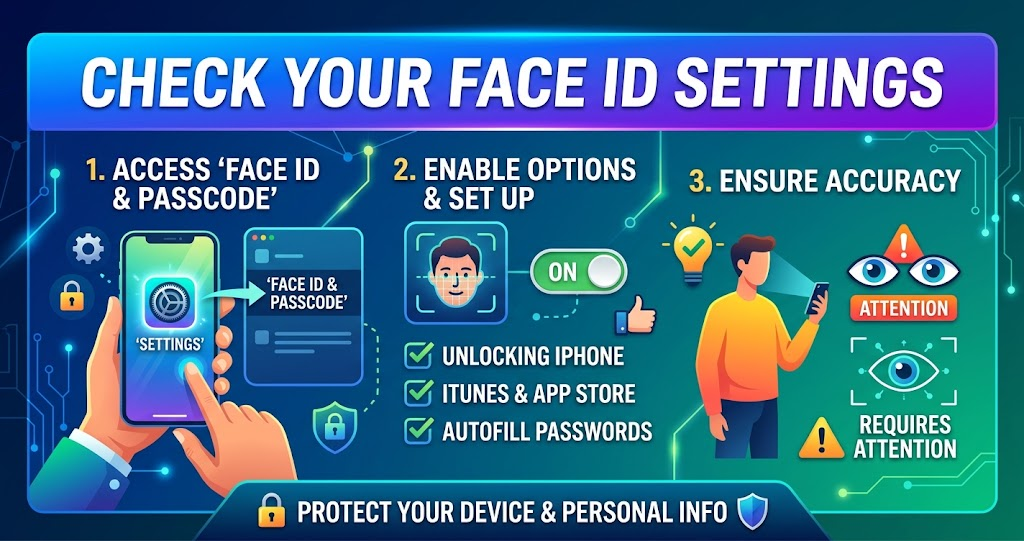
Before changing anything else, open Settings and select Face ID & Passcode. Enter your passcode when requested, then check whether Face ID is properly configured.
The settings page also controls which features can use Face ID. For example, iPhone Unlock, App Store purchases, Apple Pay, password autofill, and supported apps can have separate Face ID permissions. If Face ID works for unlocking but fails inside a particular app, the problem may be related to that app’s permission rather than Face ID itself.
Apple also recommends checking these settings when Face ID does not work as expected.
If an app supports Face ID but does not automatically request it, you may need to sign in manually once. After that, the app can provide its Face ID authentication option if supported.
Clean and Check the TrueDepth Camera
A blocked or dirty TrueDepth camera can make Face ID unreliable. Carefully inspect the area around the front camera and remove any visible fingerprints, dust, smudges, or other material.
Use a clean, soft cloth to gently wipe the area. Avoid applying cleaning liquid directly to the screen or camera opening. Also check whether your case or screen protector overlaps the camera area.
Apple specifically advises removing anything that could cover the TrueDepth camera, including a smudge, case, or screen protector. The company also notes that users of supported iPhone models should make sure their fingers or hands do not cover the camera when holding the device in certain orientations.
If the camera looks clear but Face ID still cannot recognize you, continue with the next checks rather than repeatedly wiping the screen.
Position Your Face Correctly
Face ID works best when your iPhone is held at a comfortable viewing distance. Apple recommends keeping the device approximately 10 to 20 inches, or 25 to 50 centimeters, from your face.
Your eyes, nose, and mouth should be visible to the TrueDepth camera. Therefore, sunglasses, masks, hats, or other items that significantly block your face can affect recognition.
Lighting usually does not need to be perfect because Face ID is designed for everyday use. However, positioning still matters. Hold the iPhone naturally and look toward the screen rather than turning your face sharply away.
If you have an older Face ID iPhone, orientation can matter as well. Apple states that Face ID works in landscape and portrait on iPhone 13 models and later with iOS 16 or later. Earlier iPhone models generally require portrait orientation for Face ID.
Face ID Not Working After Wearing Glasses or Changing Your Appearance
Face ID can recognize many people while they wear prescription or clear glasses. However, certain glasses can interfere with the infrared technology used by the TrueDepth system.
If Face ID suddenly struggles after you start wearing different glasses, try authenticating without them. If that solves the issue, you can consider setting up an alternate appearance while wearing the glasses.
Major changes to your appearance can also affect recognition temporarily. Facial hair, makeup, or other significant changes may make authentication less consistent. Face ID can adapt to many normal appearance changes, but an alternate appearance can help when the difference is substantial.
Restart Your iPhone
A simple restart can resolve temporary software problems. If Face ID stopped working unexpectedly, restarting the iPhone is worth trying before you reset your Face ID configuration.
After restarting, enter your passcode once and then test Face ID again. Apple specifically recommends restarting the device and entering the passcode before trying Face ID again.
A restart is especially useful if Face ID worked normally earlier but suddenly stopped responding after an app issue, system glitch, or unexpected behavior.
Update iOS to Fix Face ID Problems
An outdated version of iOS can sometimes contribute to system problems. Open Settings, select General, and then Software Update to see whether an update is available for your iPhone.
Apple recommends updating the iPhone to the latest available iOS version when troubleshooting Face ID. You should also make sure your particular iPhone model supports Face ID.
Before installing a major software update, make sure your important data is backed up. After the update finishes, test Face ID again.
If Face ID started failing immediately after an iOS update, give the device a restart first. If the problem continues, move on to checking your Face ID configuration.
Compare Common Face ID Problems
Different symptoms can point toward different causes. The following table gives a quick way to identify where to focus your troubleshooting.
| Face ID symptom | Possible cause | First thing to check | Next step |
|---|---|---|---|
| Face not recognized | Position or appearance | Face visibility | Adjust position |
| Face ID unavailable | Software or system issue | iOS version | Restart iPhone |
| Camera cannot see face | Obstruction | TrueDepth area | Clean camera area |
| Face ID fails in one app | Permission | Face ID settings | Check app access |
| Face ID setup fails | Camera or hardware issue | TrueDepth camera | Seek service if persistent |
| Works sometimes | Position or obstruction | Distance and angle | Reposition device |
The key takeaway is that an intermittent problem does not automatically mean the Face ID hardware is damaged. Check the camera area, settings, positioning, and software before assuming professional repair is necessary.
Reset Face ID and Set It Up Again
If Face ID still fails after the basic checks, resetting the Face ID configuration can help. Open Settings, choose Face ID & Passcode, and select Reset Face ID. You can then choose Set Up Face ID and complete the registration process again.
During setup, make sure your face is clearly visible and that the TrueDepth camera is unobstructed. Apple recommends good lighting during Face ID setup and instructs users to position their face within the frame while completing the registration process.
Resetting Face ID removes the existing facial recognition configuration. Therefore, you should only do it after checking the simpler possibilities first.
If the new setup completes successfully, test Face ID by locking and unlocking the iPhone. You can also test it with supported purchases or apps after confirming the appropriate Face ID settings.
Check Attention Settings
Face ID includes attention-related security features. By default, Face ID can require you to look toward the device with your eyes open before it authenticates.
If you have difficulty getting Face ID to recognize you even though the camera appears to work, check Settings under Face ID & Passcode and review the attention-related options. Apple explains that attention-aware features use the TrueDepth camera to determine whether you are paying attention to the device.
For most users, keeping the additional attention requirement enabled provides stronger security. However, accessibility settings can change how Face ID behaves, so it is worth checking them if recognition remains difficult.
What If Face ID Is Not Working in One App?
Sometimes Face ID works normally for unlocking an iPhone but does not work inside a specific app. That situation does not necessarily indicate a hardware failure.
Open Settings, choose Face ID & Passcode, and check the apps allowed to use Face ID. Apple provides an Other Apps section where supported apps can be managed.
If the app is enabled but still does not offer Face ID, manually sign in first. Some apps require an initial password or account login before they enable biometric authentication.
You should also make sure the app itself is updated. If Face ID works elsewhere but fails only in one application, the app’s configuration or compatibility is more likely to be involved.
When Face ID May Need Professional Service
If Face ID cannot be set up at all, the issue may be more serious than a temporary software problem. This is particularly important when the setup process repeatedly asks you to position your face but never completes.
A malfunctioning camera system can also prevent Face ID from working. Apple recommends seeking service when the camera is not working and Face ID cannot be set up.
Avoid attempting a DIY repair of the TrueDepth system. Face ID relies on specialized hardware, and improper repair or modification can create additional problems. Apple recommends having the device serviced by a trained technician.
If your iPhone has recently been dropped, exposed to significant damage, or repaired, mention that history when seeking service. It can help the technician understand what may have changed.
How to Prevent Future Face ID Problems
Keeping the TrueDepth camera area clean is a simple way to reduce recognition problems. A properly fitted screen protector and case can also help prevent accidental obstruction.
It is also useful to keep iOS updated and avoid covering the camera when holding the iPhone. When Face ID seems less reliable, pay attention to whether the issue occurs in a particular position, lighting condition, app, or appearance.
You do not need to reset Face ID every time recognition fails. In many cases, correcting the device position or removing an obstruction is enough.
Conclusion
When Face ID not working interrupts your normal iPhone use, start with the simplest fixes. Check the TrueDepth camera, review Face ID settings, position your face correctly, restart the device, and install available iOS updates.
If those steps do not help, resetting Face ID and completing a fresh setup can resolve configuration problems. However, repeated setup failures or a camera that does not function may indicate a hardware issue that needs professional service.
FAQs
Why is Face ID not working on my iPhone?
Face ID can stop working because the TrueDepth camera is blocked, Face ID settings are disabled, your face is not positioned correctly, or the device needs a restart or software update. Start by cleaning the camera area, checking Face ID settings, restarting the iPhone, and testing again.
How do I fix Face ID not recognizing my face?
Make sure your eyes, nose, and mouth are visible, then hold the iPhone about 10 to 20 inches from your face. Check that the TrueDepth camera is clean and unobstructed. If recognition remains unreliable, reset Face ID and set it up again.
Can a screen protector cause Face ID to stop working?
Yes, a screen protector can interfere with Face ID if it covers or obstructs the TrueDepth camera area. Inspect the top portion of your display and make sure the protector is correctly positioned. Cleaning the camera area can also remove smudges that interfere with recognition.
Why does Face ID work for unlocking but not an app?
The app may not have permission to use Face ID, or it may require you to sign in manually before biometric authentication becomes available. Check Face ID & Passcode settings and review the apps that are allowed to use Face ID.
What should I do if Face ID cannot be set up?
First, update iOS, restart the iPhone, and make sure the TrueDepth camera is unobstructed. Then try resetting Face ID and setting it up again. If setup repeatedly fails or the camera is not working, Apple recommends seeking professional service.
For more updates visit: PUBLIC TALK