If you want better aerial control, smoother car movement, and more consistent touches, checking a professional player’s setup can be a great starting point. Zen Rocket League settings are popular among competitive players who want to learn how one of the game’s top mechanical players configures his camera, controller, and gameplay.
Zen’s setup offers a balanced combination of visibility, responsiveness, and control. In this guide, you’ll find his current camera settings, controller sensitivity, key bindings, and practical tips for adjusting them to your own playing style.
Zen Rocket League Settings for 2026
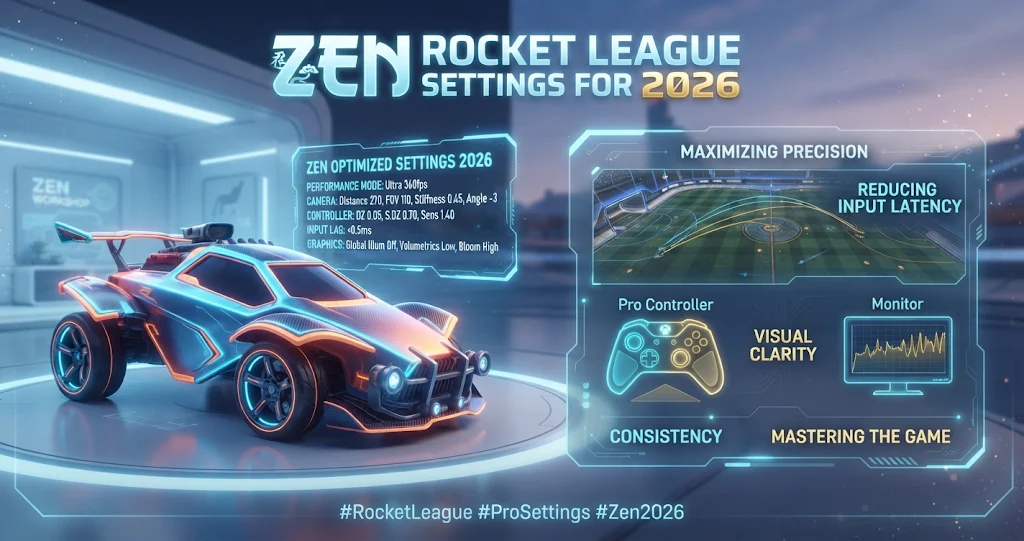
Zen uses a relatively familiar camera setup with a wide field of view, moderate distance, and low camera stiffness. These settings help him maintain awareness while controlling his car during aerial plays, fast recoveries, and challenging situations.
According to current professional player setting profiles, his camera configuration includes the following values.
| Camera Setting | Zen’s Value |
|---|---|
| Field of View (FOV) | 110 |
| Distance | 270 |
| Height | 100 |
| Angle | -3 |
| Stiffness | 0.35 |
| Swivel Speed | 4.00 |
| Transition Speed | 1.40 |
| Camera Shake | Off |
These values give Zen a wide view of the arena while keeping the camera movement relatively smooth. However, camera settings are personal, so the same configuration may feel different depending on your monitor, gameplay habits, and experience.
Why Zen’s Rocket League Camera Settings Work
Zen’s camera setup is designed around maintaining a clear view of the ball, opponents, teammates, and the surrounding arena. Although his settings look simple, each option affects how players perceive movement and react during competitive matches.
Field of View and Camera Distance
Zen uses 110 FOV, which is the maximum field of view available in Rocket League. This setting allows players to see more of the arena around their car, making it easier to monitor opponents and recognize potential passing opportunities.
His camera distance is 270, which keeps the camera far enough behind the car to provide useful perspective without making the vehicle feel too small. Therefore, players can follow the ball while maintaining a reasonable view of their car’s movement.
Camera Height and Angle
Zen uses 100 camera height and a -3 angle. This combination offers a balanced perspective of the playing field, especially when the ball moves across the arena or approaches the car from above.
A lower camera angle may help some players read ground-level plays. Meanwhile, a higher camera position can provide a different perspective during aerial challenges. Zen’s combination is a practical starting point for players who prefer a more neutral camera view.
Camera Stiffness and Swivel Speed
Zen’s stiffness setting is 0.35. Lower stiffness allows the camera to move more naturally relative to the car, which can make speed changes easier to perceive. However, some players prefer higher stiffness because it keeps the camera more closely attached to the vehicle.
His swivel speed is 4.00, which controls how quickly the camera rotates when moving the view. A faster swivel can help players check nearby opponents or track the ball, although excessive speed may feel uncomfortable at first.
Transition speed is set to 1.40, allowing the camera to move between different viewing modes at a quicker pace than the standard setting.
Zen Rocket League Controller Settings
Controller sensitivity and deadzone values influence how your car reacts to inputs. Zen uses relatively balanced sensitivity settings, which allow him to make quick adjustments without relying on extremely high sensitivity.
| Controller Setting | Zen’s Value |
|---|---|
| Steering Sensitivity | 1.50 |
| Aerial Sensitivity | 1.50 |
| Controller Deadzone | 0.07 |
| Dodge Deadzone | 0.80 |
| Ball Camera Mode | Toggle |
| Controller Vibration | On |
| Vibration Intensity | 1.00 |
His steering and aerial sensitivity are both set to 1.50. This provides a consistent response when driving on the ground or controlling the car in the air. As a result, players who are learning advanced mechanics can experiment with these values without immediately changing their sensitivity between situations.
Controller Deadzone Explained
Zen uses a controller deadzone of 0.07. This relatively low value allows small stick movements to register, making precise adjustments easier when performing aerial maneuvers or correcting the car’s position.
His dodge deadzone is 0.80. This setting determines how far the controller stick must move before a directional dodge registers. A higher value can help reduce accidental flips when players make small directional movements.
However, deadzones depend on controller condition and personal preference. If your controller has stick drift, you may need a slightly higher deadzone to maintain stable movement.
Zen’s Rocket League Controller Binds
Zen uses a PlayStation-style controller layout with several familiar controls and an air roll configuration that supports his mechanical playstyle. His binding choices make it possible to combine different movements during challenging aerial sequences.
| Action | Button |
|---|---|
| Drive Forward | R2 |
| Drive Backward | L2 |
| Jump | Cross (X) |
| Boost | Circle |
| Powerslide | Square |
| Air Roll | R1 |
| Air Roll Left | L2 |
| Air Roll Right | Unbound |
| Ball Camera | Triangle |
| Rear View | R3 |
Zen’s Air Roll Left is assigned to L2, which is also his Drive Backward button. Air Roll is assigned to R1, giving him access to free air roll during aerial adjustments.
Should You Copy Zen’s Controller Binds
Zen’s controller binds can work well for experienced players who are comfortable using his layout. However, beginners may find certain combinations difficult when learning aerial control, recoveries, and directional air roll.
If you struggle to use Boost and Jump simultaneously, consider experimenting with different bindings. You should prioritize comfortable finger positioning over copying every professional control.
Also, learning one consistent layout is more important than constantly changing bindings. Give new controls enough time before deciding whether they improve your gameplay.
How to Use Zen’s Settings to Improve
Copying a professional player’s settings does not automatically improve your rank. Instead, use Zen’s setup as a starting point and focus on building consistent mechanics through practice.
Start with his camera settings because they influence how you see the field. Next, adjust sensitivity and deadzones if your car feels too responsive or difficult to control. Finally, experiment with controller bindings only when you understand how each button affects your movement.
Free play is an excellent place to test these changes. Practise aerial touches, recoveries, dribbling, and car control without worrying about winning a match. Meanwhile, replaying difficult situations can help you identify whether your settings actually improve your performance.
Conclusion
Zen Rocket League settings provide a useful reference for players who want to improve their camera visibility, controller responsiveness, and aerial control. His 110 FOV, 0.35 stiffness, 1.50 sensitivities, and carefully arranged controller binds offer insight into how a professional approaches competitive gameplay.
However, copying his settings is only the first step. Consistent practice, positioning, decision-making, and mechanical training remain essential for improving your performance.
FAQs
What are Zen’s camera settings in Rocket League?
Zen uses 110 FOV, 270 distance, 100 height, -3 angle, 0.35 stiffness, 4.00 swivel speed, and 1.40 transition speed. He also keeps camera shake off. These values offer a wide view and smooth camera movement.
What sensitivity does Zen use in Rocket League?
Zen uses 1.50 steering sensitivity and 1.50 aerial sensitivity. Both settings provide a consistent response when controlling his car on the ground and during aerial movements.
What is Zen’s controller deadzone?
Zen uses a controller deadzone of 0.07 and a dodge deadzone of 0.80. These values help him control small stick movements while reducing unwanted directional flips during gameplay.
What controller does Zen use?
Zen has been associated with a PlayStation DualSense controller for competitive Rocket League. His control layout uses PlayStation-style button assignments, although controller hardware and preferences can change over time.
Are Zen’s Rocket League settings good for beginners?
Zen’s settings can be a useful starting point for beginners, especially his camera configuration. However, newer players should adjust sensitivity, deadzones, and bindings gradually to find a setup that feels comfortable.
For more updates visit: PUBLIC TALK